
 by Mei Lin
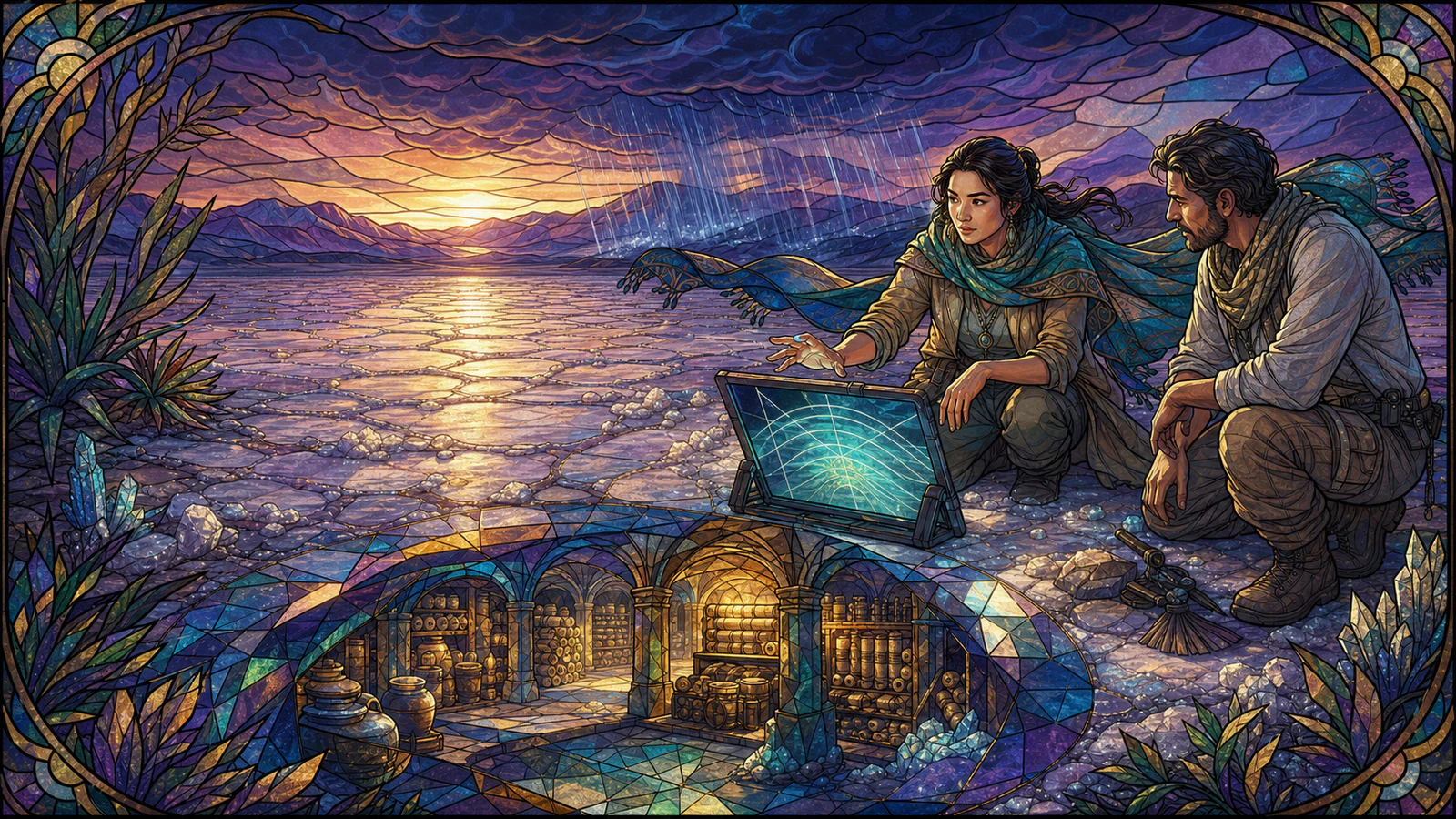
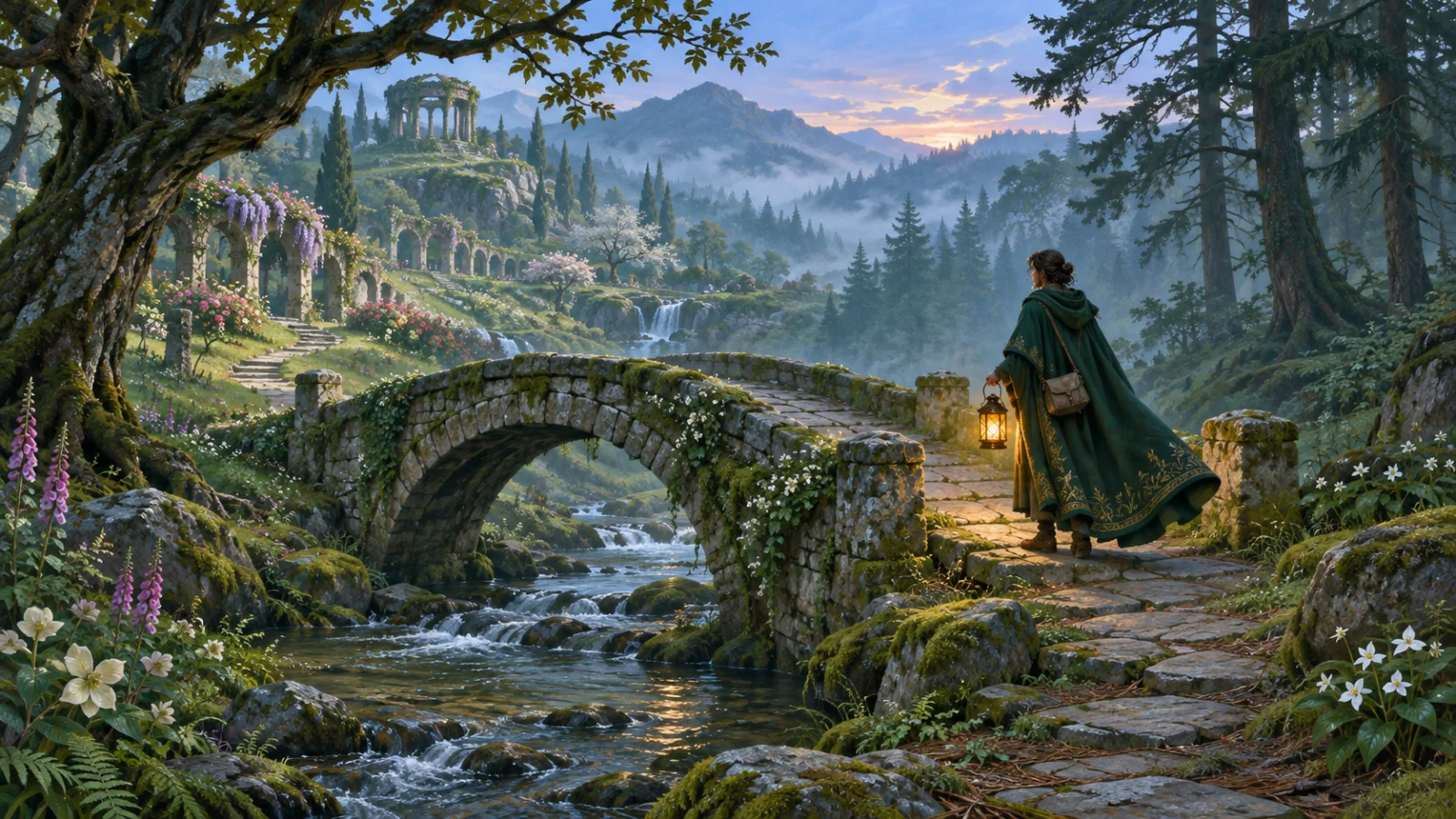
A landscape cover can introduce a character through the place they are about to enter. Before generating or choosing the image, decide what the reader should see first. On a small card, that might be a lit doorway, the outline of a bridge, or a lone traveler at the edge of a trail. Use the rest of the scene to show why that detail matters.
Pick a moment with a visible decision
Start one beat before the action. In this guide’s cover, a traveler has reached a stone bridge and pauses before crossing it. The bridge leads into the landscape, and the lantern makes the traveler’s position clear. There is enough of the far shore to suggest what is ahead. The image leaves the outcome to the story.
Write your own sentence in the same form: “A character pauses at a place before doing something.” For a quiet story, choose a gesture or a change in light. A woman stopping at a gate with an unposted letter can carry a scene as well as a chase.
Compose for the width from the start
Sketch a wide rectangle. Put the subject near the middle third and reserve the edges for setting. Give the eye a route through the scene, such as a path or a sweep of moonlight. Look at the rectangle as a thumbnail. If the gesture disappears, bring it closer or make its outline easier to see.
In the Curvature Zero reading guide, the observatory window leads to a crater and a sunlit ridge. The ridge still gives the image a destination when the furniture at the left is small. In the bridge cover above, the lantern and the stone arch do the same job.
Use a brief you can check
For this scene, a short image brief could read: “Wide landscape at blue dawn. A traveler carrying an amber lantern pauses beside a mossy stone bridge. Keep the lantern and arch readable in the middle of the frame. Show the stream below and the forest beyond.”
Keep your character’s clothes, props and setting consistent with the published story. If the traveler always wears a dark green cloak, include that detail in the brief and compare the result with your character continuity notes.
Check the article and the small preview
The Eternal Gardens article editor crops uploaded covers to 16:9. Upload a wide image, then open the preview and narrow the window. Can you still recognize the subject? Does the mood survive when you skim past it? If the crop loses the subject, adjust the composition and preview it again.
When your editor offers image descriptions, write a plain sentence about the scene. “A lantern-carrying traveler pauses by a mossy stone bridge at dawn” identifies the visual idea. Google’s image guidance also recommends a representative image and descriptive alt text.
For a larger editorial update, Réson AI’s walkthrough of the Eternal Gardens Journal cover refresh explains how we checked and replaced covers across a publication.
Try the thumbnail exercise with Solène Riveclaire at the midnight cinema. Give her a scene in one sentence and ask which single frame should survive the crop.